
Scratch
Scratch is a block based coding language.
Here is an example of the code for a simple program
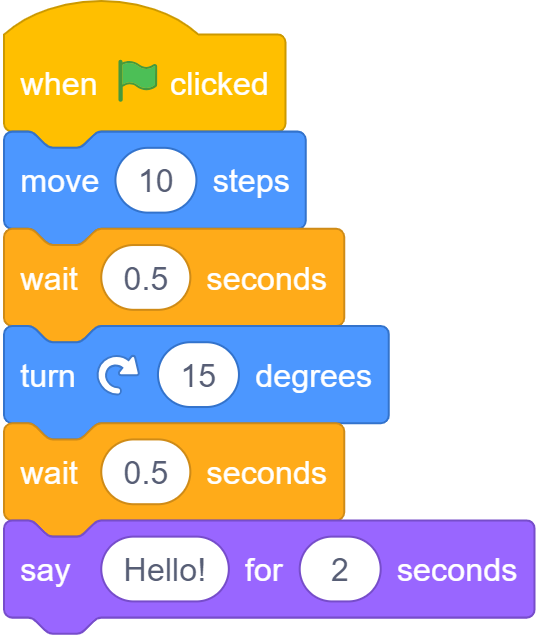
and here is what will happen if you run the program
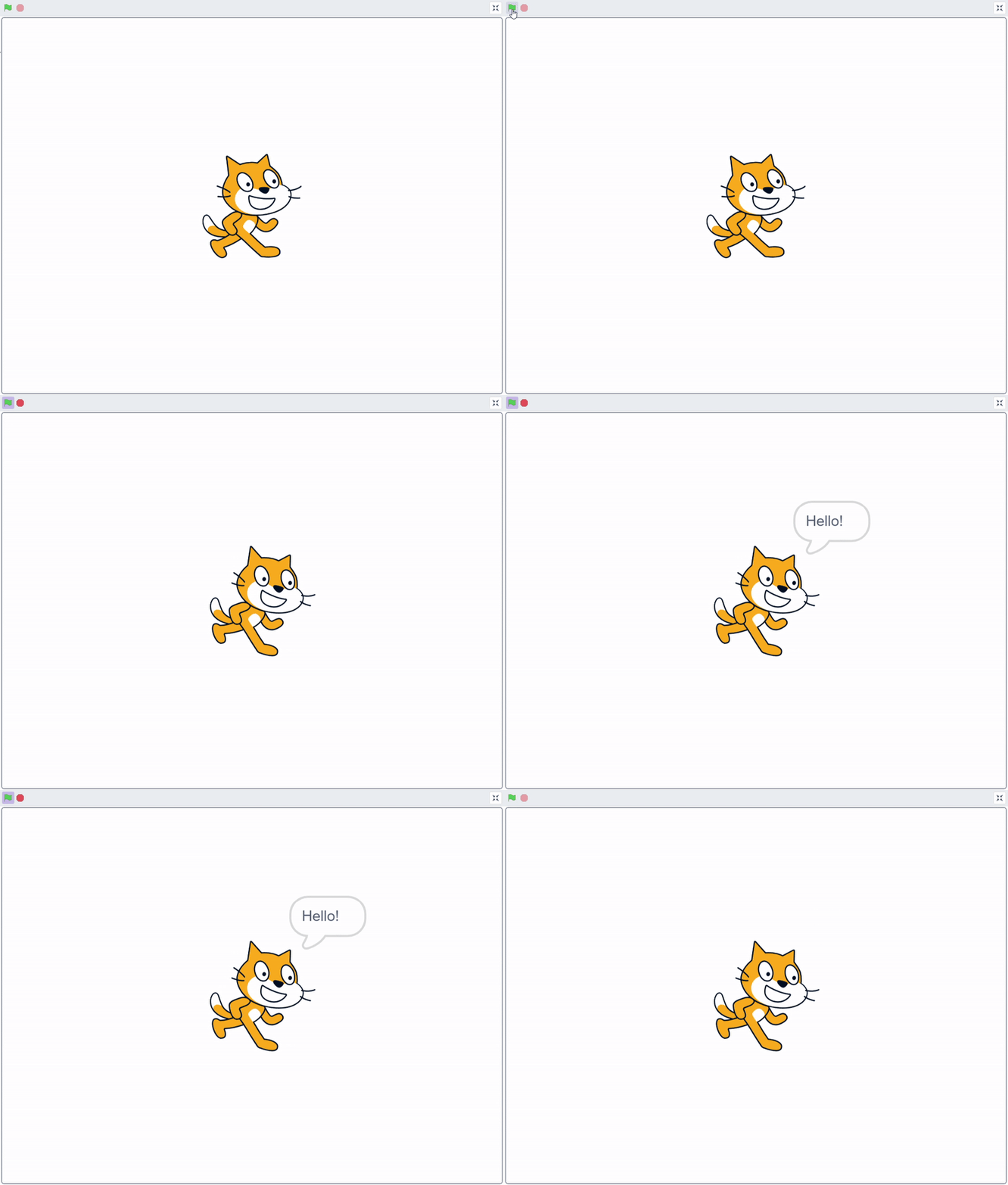
See! The program does exactly what the code says! Now this is the simple intro, lets introduce you to the IDE (Coding app)
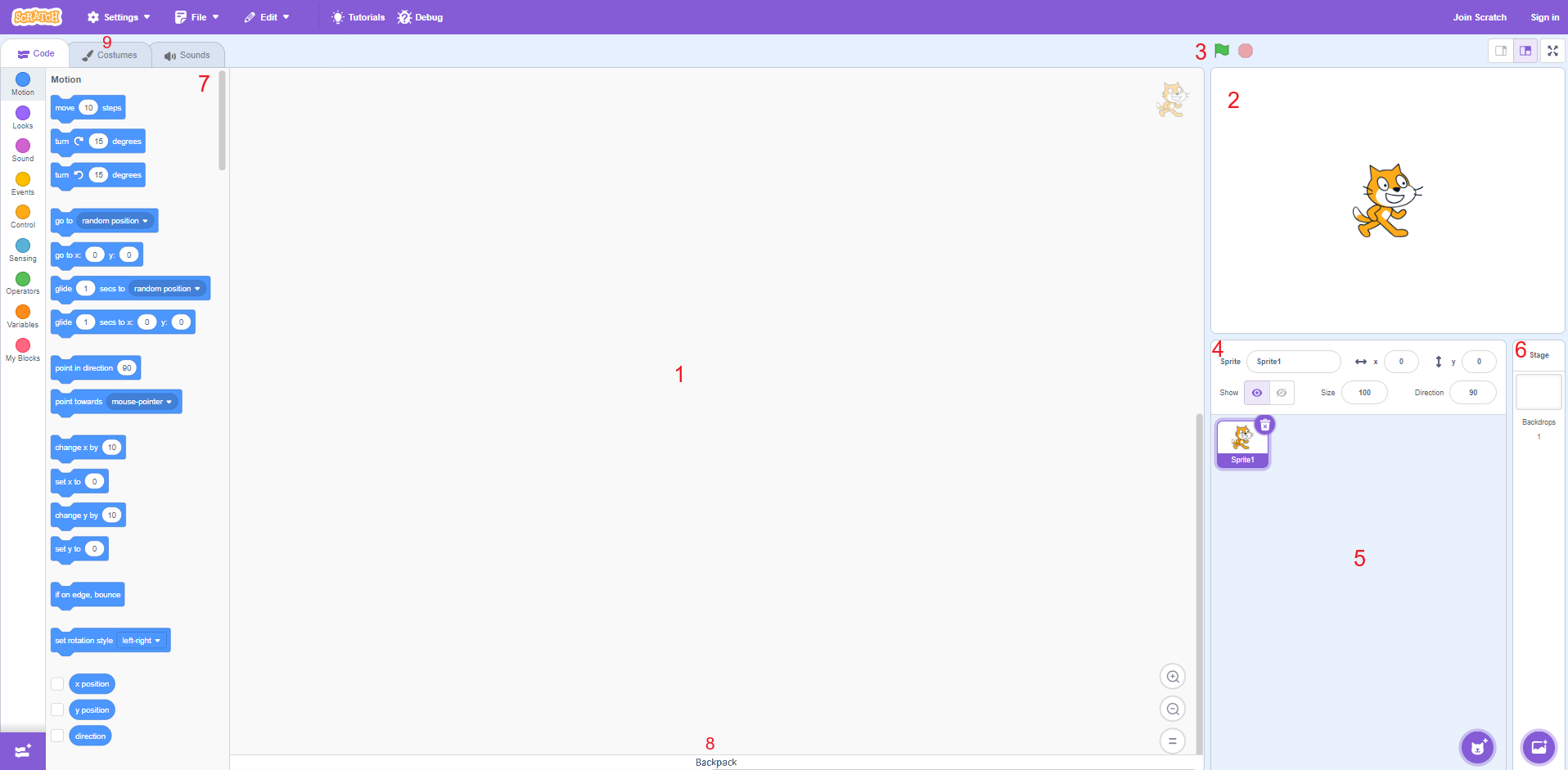
click to open image
Notes:
Sprite: a character or object in your game, ex: scratch cat.
Scratch wiki (more indepth and less lazy): https://en.scratch-wiki.info/wiki/Scratch_Wiki_Home
- Your editor space
Your editor space contains the code for the selected sprite. (see 5)
To put code onto the editor space, you have to drag it from the code list. (see 7)
To delete code, drag the code to the code list. (see 7)
- Game preview
Displays what your code is doing.
You can also drag sprites to where you want them to be on the preview.
- Buttons
Contains the Green flag button, Stop button, and Fullscreen button.
The green button does any code that is under "When green flag clicked."
The stop button stops all code.
The fullscreen button, does what its suppose to do.
- Sprite information
Displays information such as Sprite name, x value, y value, sprite visibility, size, and direction.
All sprite information (except for sprite name) can be changed in game through code.
You can change all the sprite information where it displays the info.
- Sprite list
Displays your sprites.
Click a sprite to switch to the sprite.
Can also delete the sprite.
Button on the bottom left to add a sprite. (hover for more options)
Can drag code from editor space to a sprite to add that code to the sprite.
- Game Background
Click to switch to the background.
Can NOT use blocks that are only relevant to sprites.
Can change background of the whole game.
Sprites cannot be under the background
- Code list thingy
Displays all code relevant to the selected sprite/background.
Drag onto editor space to actually use the code as long as it is under an event block. (excluding broadcast blocks) (see 1)
- Backpack
Click to open/close
Can store stuff such as snippets of code, sounds, costumes, etc.
Can drag stuff out to put it into the current project
Available across all projects.
- Tabs for Code, Costumes, and Sounds
Read this page if you want to learn about costumes, and sounds
Now you can try!
first, try dragging the blocks from the sidebar into the editor
then, try connecting the blocks
so try dragging a "on green flag clicked" and "move 10" together!
and once you've dragged them, press the green flag
did you see what happened in your game previes window? the sprite moved!
Now that you have spent way too much time reading this (or atleast me typing this)
You should know somewhat on how to code in scratch.
good luck with your challenge!
sorry for this like half done tutorial just try a youtube video im trying man :(